
Written by Michael Mau — Founder & CEO, Thor Computer Ltd. Cisco-certified IT engineer with 20+ years in data centre operations, hardware diagnostics, and system support. Serving London homes and businesses since 1999. About the Author →
Table of Contents
If your computer freezes upon startup, you are staring at one of the most common and most misdiagnosed faults in the IT repair world. You press the power button, the manufacturer logo appears, and then the machine just stops. Locked. Unresponsive. No error message, no explanation.
At Thor Computer, our certified London engineers deal with this exact problem multiple times every week. Some cases are resolved in ten minutes with a software fix. Others point to failing hardware that needs urgent attention before data is permanently lost. This guide covers every realistic cause and every practical fix in the order you should try them.

Why Does a Computer Freeze Upon Startup?
A computer freezing upon startup is different from a random freeze mid-session. The boot sequence follows a strict chain: BIOS/UEFI firmware runs first, then the storage drive is read, then RAM is initialised, then the Windows boot loader takes over. A freeze anywhere in this chain stops everything.
Based on hundreds of callouts across London, here are the most common causes ranked by how often we actually see them:
| Rank | Cause | Frequency |
|---|---|---|
| 1 | Failing or corrupted storage drive (HDD/SSD) | Very common |
| 2 | Corrupted Windows boot files | Common |
| 3 | RAM fault or partially unseated stick | Common |
| 4 | Faulty peripheral device (USB, dock, printer) | Common |
| 5 | Overheating — CPU throttles during POST | Moderate |
| 6 | BIOS misconfiguration or CMOS failure | Moderate |
| 7 | Failing PSU (desktops) | Moderate |
| 8 | Boot sector malware | Rare but severe |
The location of the freeze is your single most useful diagnostic clue. Note it carefully before you do anything else:
- Freezes at the manufacturer splash screen → Hardware fault (RAM, storage, PSU)
- Freezes at the Windows spinning animation → Corrupted boot files or driver conflict
- Freezes just before the login screen → Startup service or driver crash
- Reaches desktop, freezes within 30 seconds → Overheating or RAM fault
Fix 1: Disconnect All Peripherals
Start with the simplest possible cause before touching anything internal.
Unplug everything that is not the monitor, keyboard and mouse. That means USB hubs, external hard drives, USB sticks, SD cards, printers, docking stations and dongles. Then restart.
A PC freezing on startup is caused by peripheral conflicts more often than most people expect. If the BIOS is set to check USB devices for a bootable operating system, a rogue USB stick or a malfunctioning external drive can halt the entire boot process. We have attended callouts in Hackney, Croydon and Canary Wharf where the fix was simply removing a forgotten USB stick from a port.
If the machine boots cleanly after removing peripherals, reconnect them one at a time to identify the culprit.
Also check: For desktops, plug directly into a wall socket rather than a surge protector or UPS. A degraded power strip can deliver inconsistent voltage that causes a computer to freeze upon startup or restart mid-boot.
Fix 2: Boot Into Safe Mode
Safe Mode is your most powerful free diagnostic tool when your computer freezes upon starting up. It loads Windows with only Microsoft’s core drivers no third-party software, no GPU drivers, no startup applications.
The rule is simple: if the machine boots cleanly in Safe Mode, your problem is software. If the computer screen is frozen on startup even in Safe Mode, you have a hardware fault.
How to access Safe Mode on Windows 10 and 11:
- Hold the power button to force-shut down the machine. Do this three times in a row Windows detects repeated failed boots and automatically opens the Windows Recovery Environment (WinRE).
- Go to Troubleshoot → Advanced Options → Startup Settings → Restart.
- Press F4 for Safe Mode or F5 for Safe Mode with Networking.
Once inside Safe Mode, do these three things:
Task Manager → Startup tab: Disable every non-Microsoft item. Restart normally and check if the freeze is gone. If it is, re-enable apps one at a time to find the culprit. This alone resolves approximately 30% of the startup freezing cases we handle.
Device Manager: Look for any yellow warning triangles on hardware devices. Right-click → Update driver or Roll back driver. A recently installed or auto-updated driver is a very common cause of a PC hanging on startup after a Windows update.
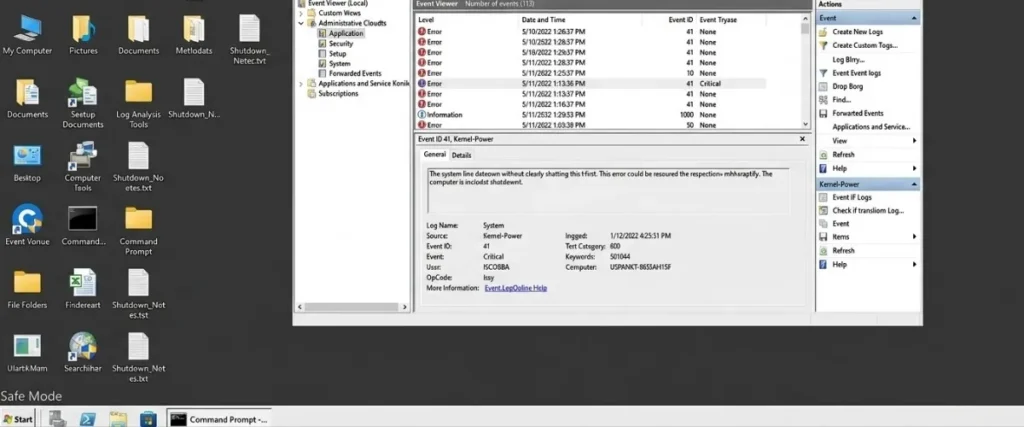
Event Viewer: Go to Windows Logs → System. Filter for Critical and Error events logged at the exact time of the crash. These entries frequently name the exact driver or service responsible. It takes two minutes to check and can save hours of guesswork.
Fix 3: Run a Disk Health Check (CHKDSK & SMART)
If Safe Mode does not reveal a software fault, the storage drive is the next suspect and the most urgent one. A failing drive puts your data at risk right now, not eventually.
Check SMART Status First
Every drive records internal health statistics via S.M.A.R.T. (Self-Monitoring, Analysis and Reporting Technology). Download CrystalDiskInfo (free, from the official developer) and open it. A green “Good” status means the drive is healthy. A yellow “Caution” or a red “Bad” indicates impending failure.
Alternatively, open Command Prompt as administrator and type:
wmic diskdrive get status
Anything other than OK is a warning sign.
Run CHKDSK
CHKDSK scans for file system errors and bad sectors. Open Command Prompt as administrator and run:
chkdsk C: /f /r /x
The /r flag scans for bad sectors and attempts to recover readable data. You will be asked to schedule it for the next restart. Let it run to full completion — do not interrupt it. On a large or degraded drive this can take anywhere from 20 minutes to several hours.
If CHKDSK reports bad sectors, treat this as an emergency. A drive logging bad sectors is actively failing. Back up your data immediately and replace the drive. Do not continue restarting — each forced restart on a failing drive can cause further read errors and data loss.
Fix 4: Test and Reseat Your RAM
RAM faults account for a significant share of startup freezes, particularly on machines that have been moved, transported or had internal work done recently. Even a minor vibration can cause a memory stick to partially unseat from its slot.
Physical Reseating
- Shut down and unplug the machine completely.
- Open the case or bottom panel (on laptops where RAM is accessible).
- Remove each RAM stick and firmly reseat it until it clicks.
- If you have two sticks, try booting with only one installed at a time — swap between slots. This isolates both a faulty stick and a faulty motherboard slot.
Windows Memory Diagnostic
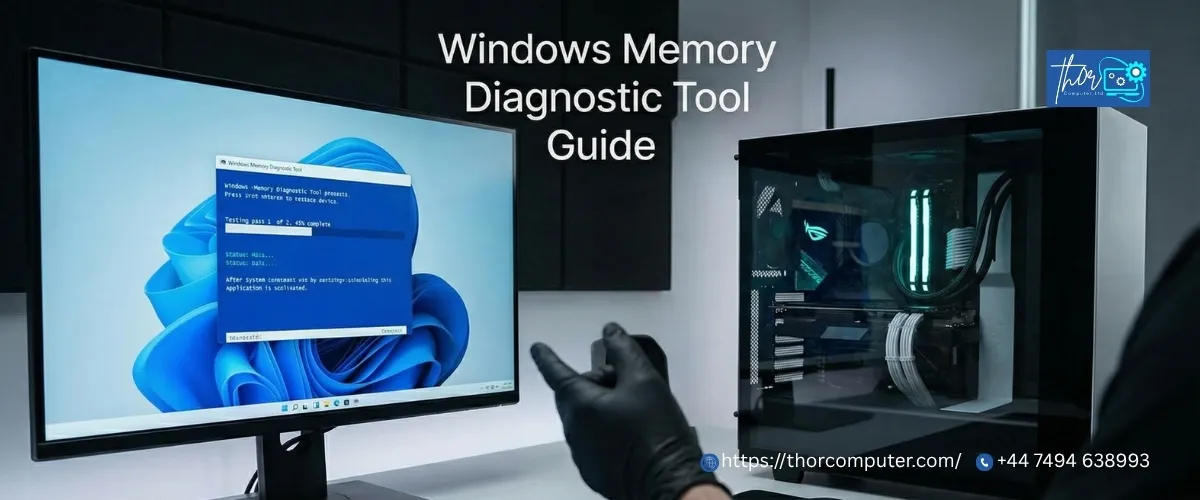
Press Windows + R, type mdsched.exe and select Restart now and check for problems. The tool tests RAM on the next boot and reports results when Windows loads. It catches most common faults.
MemTest86 (More Thorough)
For a rigorous test, create a bootable MemTest86 USB drive (free). Boot from it and run the full test — ideally overnight. MemTest86 runs entirely outside Windows, catching faults that the built-in tool sometimes misses.
Any error reported by MemTest86 means the RAM needs replacing. There is no software fix for failing memory. Continuing to run on faulty RAM risks data corruption and further system instability.
Fix 5: Check the BIOS and Boot Order
Sometimes a computer hanging on startup has nothing broken — the BIOS is simply misconfigured. This happens most often after a CMOS battery failure resets all settings to factory defaults, or after recent hardware changes.
How to enter BIOS:
| Brand | Key at Startup |
| Dell | F2 |
| HP | F10 or Esc |
| Lenovo | F1 or F2 |
| ASUS / MSI | Delete or F2 |
| Acer | F2 or Delete |
Check these settings once inside:
Boot Order: Your primary Windows drive should be listed first — before any USB, DVD, or network boot option. An incorrect boot order causes the machine to attempt booting from a device with no OS, resulting in a hang.
SATA Mode: Verify this has not been switched between AHCI and IDE. If it has changed (common after a CMOS reset), Windows will fail to recognise the storage controller and freeze on boot.
Drive Detection: Confirm your storage drive appears in the BIOS drive list. If it does not appear at all, the drive has failed or the physical connection is broken.
Secure Boot: If recently toggled, Secure Boot conflicts can prevent older Windows installations from loading. For Microsoft’s official guidance on Secure Boot settings, refer to their support documentation.
Replace the CMOS Battery
The CMOS battery is a CR2032 coin cell on the motherboard that stores BIOS settings when the machine is unplugged. When it fails, typically after 5–10 years. The BIOS resets to defaults every time the machine is disconnected from power. Symptoms include the system clock resetting to a date years in the past and repeated boot configuration failures. A replacement battery costs under £60 and takes five minutes to swap.
Fix 6: Repair Windows Boot Files
If all hardware checks out and the problem is software, corrupted Windows boot files are the most likely cause. This happens after forced shutdowns during updates, power cuts mid-write, or virus activity.
Startup Repair (Automatic)
Trigger WinRE by force-restarting three times, then go to
Troubleshoot → Advanced Options → Startup Repair
This is Windows’ own automated repair. It handles the majority of corrupted boot loader cases without any command-line work.
Manual Boot Record Repair
If Startup Repair does not resolve it, open Command Prompt from WinRE and run these four commands in sequence:
bootrec /fixmbr
bootrec /fixboot
bootrec /scanos
bootrec /rebuildbcd
These rebuild the Master Boot Record and the Boot Configuration Data the two most common corruption points. Restart after completion and test.
System File Checker + DISM
From an elevated Command Prompt, run:
sfc /scannow
This scans and replaces corrupted protected Windows files. Follow with:
DISM /Online /Cleanup-Image /RestoreHealth
DISM repairs the Windows Component Store that SFC pulls from. Running both in sequence gives the most thorough software repair short of a full reinstall. For reference on what these tools do, Microsoft’s documentation on SFC explains the process in full.
Fix 7: Diagnose Overheating and PSU Faults
A machine that shuts itself off randomly during boot rather than simply freezing is behaving differently and for different reasons. This is almost never a software fault.
Overheating at Boot
Modern CPUs and GPUs have built-in thermal protection. If the processor reaches a critical temperature threshold, it triggers an immediate shutdown to prevent physical damage. This can happen during boot on machines where:
- The CPU cooler has come loose (common after transport or rough handling)
- Thermal paste between the CPU and heatsink has dried and cracked typically after 4–6 years of use
- The cooling fan has stopped working or is blocked with dust
Full Diagnostic Checklist: Computer Freezes Upon Startup
Use this as a systematic checklist work top to bottom:
- Note where the freeze occurs (POST, OS logo, desktop)
- Disconnect all external peripherals and test
- Reseat RAM — one stick at a time if possible
- Run MemTest86 — minimum 2 passes
- Check BIOS — verify boot order, disable XMP, reset to defaults
- Check CPU temperature in BIOS or with monitoring software
- Clean dust from CPU cooler, fans, and vents
- Run CHKDSK from recovery environment
- Check SMART data with CrystalDiskInfo
- Run Windows Startup Repair from installation USB
- Rebuild BCD from command prompt if Startup Repair fails
- Boot to Safe Mode — check for driver conflicts
- Roll back recent drivers or Windows updates if applicable
- Test PSU with multimeter or swap test
- Run Offline/Bootable Antivirus Scan
When to Call a Professional in London?
Stop troubleshooting yourself and call a professional when:
- CHKDSK reports bad sectors — your data is at active risk. Stop restarting the machine.
- MemTest86 reports RAM errors — faulty RAM needs correct replacement parts and safe installation.
- The BIOS does not detect your storage drive — the drive or a board-level component has failed.
- You see a BSOD stop code — write the code down and call us. These codes are precise diagnostic data in the right hands.
- The machine shuts off within seconds of powering on — thermal or PSU failure; continuing risks permanent component damage.
- You have tried every fix above and the problem persists — hardware diagnosis requires physical access, specialist tools, and experience.
AtThor Computer, we offer a free initial diagnostic on every device. Our Cisco-certified engineers serve all of London and will come to your home or office no need to transport your machine or dismantle your setup. We carry the most commonly needed parts with us: RAM sticks, SSDs, thermal paste, CMOS batteries and connector components. Most repairs are completed in a single visit.
Pricing guide for common startup fault repairs:
| Repair | Starting Price |
| Diagnostic (credited to repair) | From £60 |
| Software / boot file repair | From £60 |
| SSD replacement + OS reinstall | From £80 (+ parts) |
| RAM replacement | From £60 (+ parts) |
| Thermal paste replacement | From £60 |
| Full data recovery before repair | From £80 |
All work covered by our 7-day warranty. No fix, no fee.
Areas Thor Computer Covers in London
Thor Computer engineers cover the full Greater London area and parts of Kent:
Central London: Westminster, City of London, Southwark, Lambeth, Camden, Islington North London: Barnet, Enfield, Haringey, Waltham Forest, Hackney East London: Tower Hamlets, Newham, Redbridge, Havering, Barking & Dagenham South London: Croydon, Lewisham, Greenwich, Bromley, Wandsworth, Merton West London: Ealing, Hounslow, Richmond, Kingston, Hillingdon, Hammersmith & Fulham
📞 +44 7494 638993 (Call or WhatsApp) 📧 info@thorcomputer.com 📍 167–169 Great Portland Street, 5th Floor, London, W1W 5PF→ Book a Same-Day Appointment → Get a Free Quote
Frequently Asked Questions
Q: My computer freezes upon startup every morning but works after a hard restart. Why?
This is a classic sign of a storage drive that struggles with the initial power-on read operation but stabilises once it has been running for a minute or two. It can also indicate cold-soak thermal issues. Either way, this pattern worsens progressively. Run a SMART check immediately and book a diagnostic — do not wait until the drive fails completely and takes your data with it.
Q: My PC is stuck on the boot screen and won’t pass the manufacturer logo. Is my data safe?
Possibly, yes. A corrupted boot loader prevents Windows from loading but does not necessarily mean the storage drive has failed. Your data may be fully intact. A technician can boot from an external USB drive to access and back up your files regardless of whether Windows itself can start. Stop forcing restarts — each one on a borderline drive increases the risk of data loss.
Q: My computer randomly shuts off during startup. Is it a virus?
A machine that shuts itself off during boot — rather than freezing — is almost never virus-related. This points to overheating, PSU instability, or a RAM fault causing a kernel panic. Viruses typically cause slowdowns, redirects, and post-boot misbehaviour, not cold shutdowns. That said, sophisticated bootkit malware can cause boot failures — mention any suspicious recent downloads when you call us.
Q: My computer hangs on startup and makes beeping sounds. What do they mean?
Beep codes are your BIOS communicating a hardware fault in audio. The pattern varies by manufacturer, but common examples include: one long + two short beeps (GPU fault), continuous short beeping (RAM not detected), three beeps (RAM failure on AMI BIOS). Write down the exact beep pattern and share it with your technician — it narrows diagnosis significantly.
Q: Can a Windows update cause a PC to freeze on startup?
Yes, and increasingly so. A failed or partially-applied Windows update can corrupt boot files or install an incompatible driver. Booting into Safe Mode and using System Restore to roll back to a pre-update restore point is usually the cleanest fix. If no restore points exist, Startup Repair or manual boot record repair (covered in Fix 6 above) is required.
Q: My laptop screen is frozen on the startup screen. Is the screen broken?
Almost certainly not. A frozen static image during boot is a system-level freeze, not a screen fault. True display hardware failures manifest as flickering, coloured lines, blank output, or partial images — not a frozen but otherwise intact startup screen.
Q: How much does it cost to fix a computer that freezes upon startup in London?
Software repairs (boot file corruption, driver conflicts) start from £60 at Thor Computer. Hardware repairs such as SSD replacement start from £80 plus parts. RAM replacement starts from £60 plus parts. All quotes are confirmed before work begins and are covered by our no fix, no fee policy. Get a free quote here.
Q: Is it worth fixing a computer that freezes on startup, or should I buy a new one?
For machines under six years old, repair is almost always more cost-effective than replacement. An SSD swap with data migration typically costs £80–£150. A RAM replacement costs £40–£80. Even complex motherboard repairs are often cheaper than a comparable new machine. The replace vs. repair question is worth revisiting on machines over eight years old or where multiple components are failing together. Our free diagnostic gives you a clear, no-pressure assessment of both options.